What you need
An old tablet
It needs a front camera and Chrome. Android is what Romp is built and tested on. A few years old is fine: mine is six.A TV with HDMI
Any TV works. A bigger screen is more fun, but the game still runs on the tablet's own screen if you don't have a TV.USB-C to HDMI adapter
A cheap USB-C hub with HDMI, about ₹800–1,500. Get one with a USB-C charging port (PD) so the tablet charges while you play.About 2–3 m of floor
The camera has to see you from head to feet. A narrow room is fine because most games only need you to reach up and forward.Will my tablet work with the TV?
This is the only real question. Your tablet's USB-C port has to send video out, which is called DisplayPort Alt Mode. Many devices can't do it, even though the plug is the same.
| Usually yes | Samsung Galaxy Tab S series (Tab S4 and newer, like my Tab S7). These also get Samsung DeX, which is the best way to play. |
| Check your model | Other Android tablets, including some Lenovo, Xiaomi and OnePlus models. Search “your model + USB-C HDMI output” or “DisplayPort Alt Mode”. |
| Usually no | Most budget tablets, like Samsung Galaxy Tab A and many entry-level models. If yours is one of them, use one of the plan B options below. |
Set it up
- Connect. Tablet → USB-C hub → HDMI cable → TV. Plug the tablet's charger into the hub's USB-C charging port. The camera and the game keep the tablet busy, so charge it while you play.
- Place the tablet just under (or above) the TV, landscape, front camera facing the room, at about waist-to-chest height. A small stand or a stack of books works.
- Samsung? Use DeX. When you connect, choose DeX (not “Screen mirroring”). Romp then gets the whole TV. On other devices the screen mirrors, and that's fine.
- Put the TV in Game mode. the single biggest fix On the HDMI input you're using, set the picture mode to Game (Sony and Samsung call it Game mode, LG calls it Game Optimizer) and turn motion smoothing off. On my TV this cut the delay from about 160 ms to about 67 ms. Everything felt twice as snappy.
- Light the room. Switch on the ceiling light and avoid standing with a bright window behind you. The camera tracks you much better when it can see you clearly.
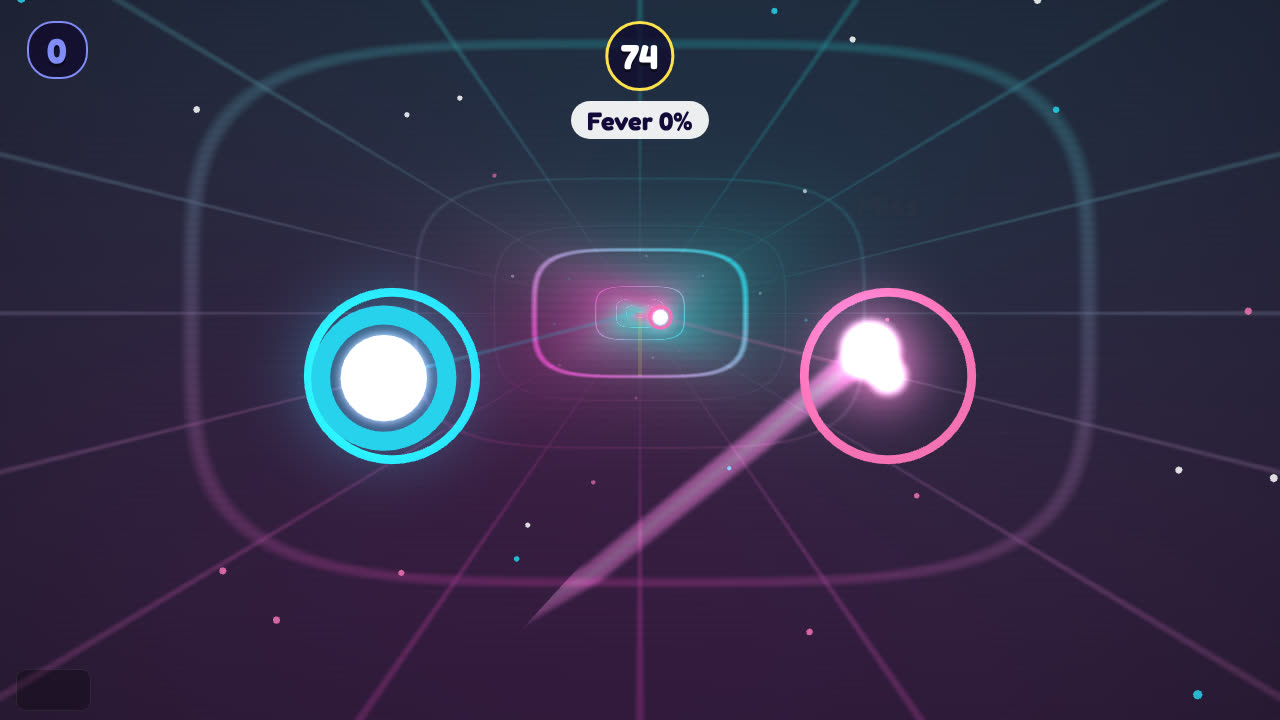
This is Pulse. Notes fly down a neon tunnel onto two rings, cyan for your left hand and pink for your right. Swing, clap and duck on the beat, to three original songs.
Get Romp
Romp is open source. The whole thing (all 17 games, the body tracking, the music) lives in one GitHub repo:
Scan it, or type it into any browser. Everything below starts from here.
Romp is a website you host yourself. Chrome only lets a page use the camera over a secure https:// link, so pick one of these:
Option A: one-click deploy easiest · no coding
- Open the repo and tap the black ▲ Deploy button near the top of the page.
- Sign in to Vercel with your GitHub account (free), then press Deploy. It builds Romp for you in about two minutes.
- You get your own link, like romp-something.vercel.app. That link is your console. Save it.
Building locally?
Follow the development instructions in the Romp repository. For the tablet, the one-click HTTPS deployment above is the simplest way to grant camera access.
Open it and play
- Open your Romp link in Chrome on the tablet.
- Allow the camera when Chrome asks. If you tapped “Block” by mistake, tap the icon left of the address, then Permissions → Camera → Allow, and reload.
- Make it an app. Chrome menu ⋮ → Add to Home screen (or “Install app”). Romp then opens full-screen from its own icon.
- Step back until your whole body is in view. Romp tells you if your feet or head are cut off.
- Point at a button and close your fist to press it. You never have to touch the tablet. If you're near the tablet, tapping works too.
- Once per setup: Home → Tracking → Measure. The screen flashes for about 12 s while the camera measures your TV's delay, and Romp uses that number to make movement feel instant. Do it again if you change the TV or cable.
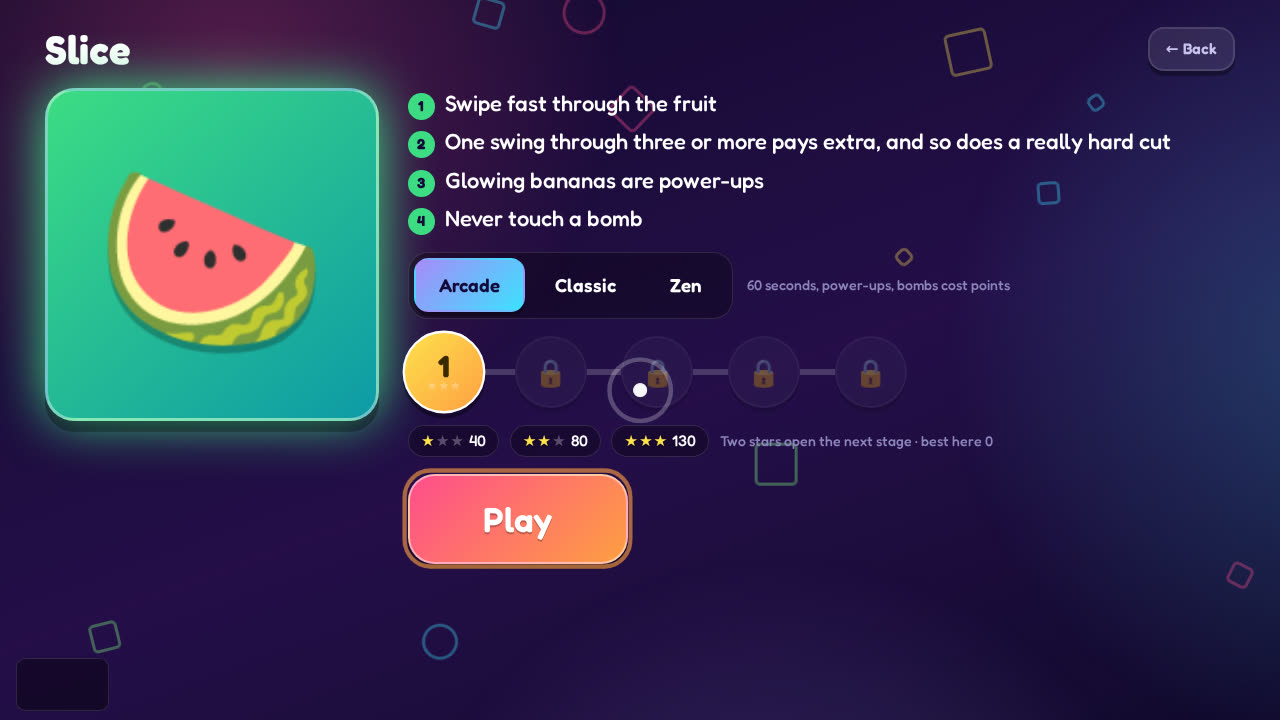
Every game shows how to play before it starts. Earn two stars to open the next stage, and pick a mode (here: Arcade, Classic, Zen).
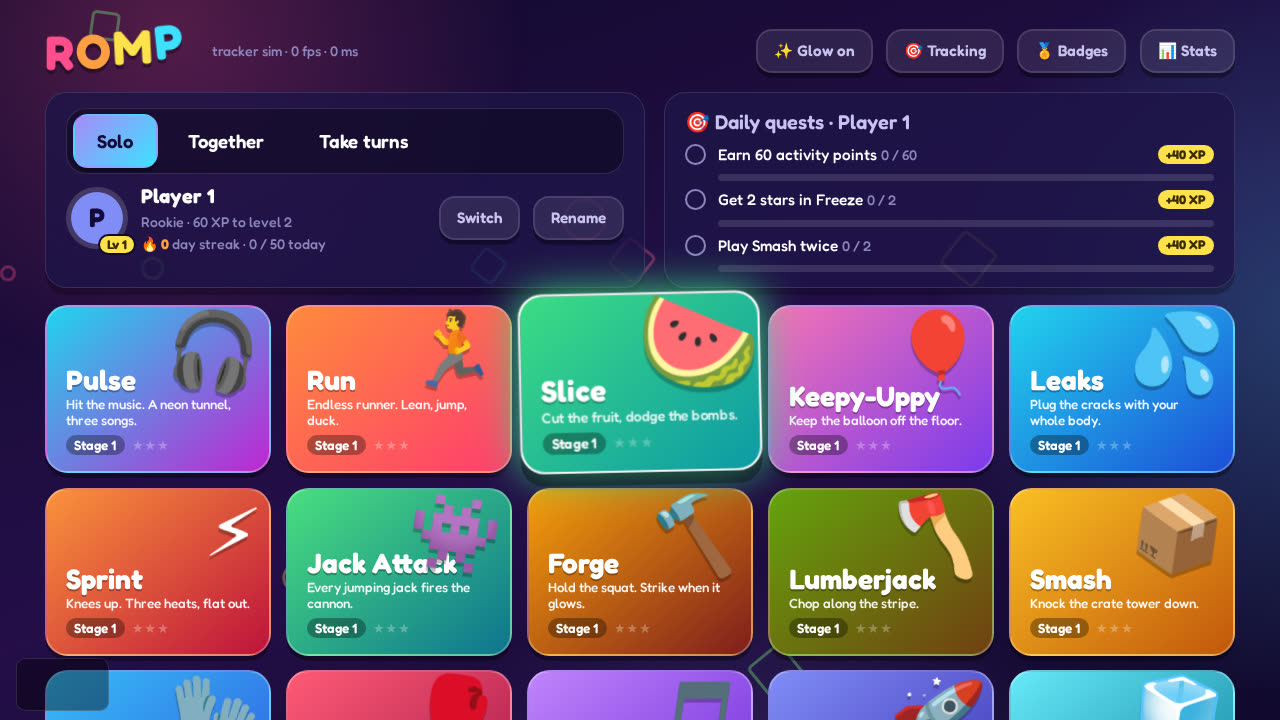
17 games
Quick fixes
My moves show up late
Turn on TV Game mode and switch motion smoothing off. Use DeX instead of mirroring. Then run Tracking → Measure again. Casting over Wi-Fi always adds some delay, so a cable is best.
It doesn't see me, or the hand jitters
Add light, step back until your feet are in view, and don't stand against a bright window. Plain clothes that stand out from the wall help too.
Black screen or “camera blocked”
Chrome → lock icon → Permissions → Camera → Allow. Close any other app that is using the camera, then reload.
TV shows nothing
Pick the right HDMI input on the TV. Try another cable. If it never works, your tablet probably has no video out (see page 2). Cast the screen instead.
The tablet gets warm or slows down
That's normal, because the camera and the game both run on it. Close other apps, keep it on the charger, and turn off Glow on the home screen for extra speed on older devices.
Buttons won't press
Open your hand fully, point at the button, then close your fist once. If it still won't read your fist, hold the pointer still on the button and it presses on its own.
No sound
The sound comes out of whatever shows the picture. Turn up the TV volume, and on the tablet check that media volume isn't muted.
iPad?
Romp is built and tested on Android with Chrome. iPad may work, but I haven't tested it yet. Tell me how it goes.
| Tablet | Samsung Galaxy Tab S7 (about 6 years old), in DeX |
| Cable | A USB-C hub with HDMI and a charging port that I already had |
| TV | Sony Bravia, Game mode on, motion smoothing off |
| Room | Deep but narrow, so two of us play side by side with one arm out each, or take turns |
No tablet, no GitHub, no setup. Just a link you open and play.
Look out for the next episodes, and follow so you don't miss them. And send me a clip of you playing this one.
Romp is free and open source. Keep the downloadable PDF for the original setup guide.